
How to Use Yavapai County’s New OpenGov Permit Portal
Yavapai County Has a New Online Permit Portal
Yavapai County Development Services launched its new OpenGov permitting system on July 28, 2026. The portal replaces the County’s previous system for Development Services permitting activities. Property owners, contractors, designers, and other permit applicants may now need to use OpenGov to submit applications, access permit records, and manage active projects.
As part of the transition, the County has also sent notices about permit records transferred into the new system. Some of these emails may relate to older permits, including records that have already been completed or closed. Receiving a notice doesn’t necessarily mean there’s a problem with the permit or that you need to take immediate action.
This guide explains how to create an OpenGov account, respond to a permit migration notice, save your permit-specific Claim Code, and access an existing Yavapai County permit when needed.

What Is the Yavapai County OpenGov Permit Portal?
OpenGov is Yavapai County Development Services’ new online permitting platform. It gives property owners, contractors, designers, and other applicants a central place to submit applications and manage permits administered by the County.
Depending on the type of application, permit status, and level of access, users may be able to:
Create and submit permit applications
Access existing permit records
Review application and permit status
Respond to requests from County staff
Upload plans and supporting documents
Review project communications
Pay applicable fees
Request or manage inspections
The tools and actions available may differ based on the permit type, its current status, and the user’s connection to the record.
Applicants can access the official OpenGov Online Permitting Portal directly or follow the portal link provided on the Yavapai County Development Services page.
Make Sure Yavapai County Is the Correct Jurisdiction
The OpenGov portal is for permits and services administered by Yavapai County Development Services, primarily for properties located in unincorporated areas. It isn’t automatically the correct portal for projects inside Prescott, Prescott Valley, Cottonwood, Sedona, or another incorporated city or town. Those municipalities have their own permitting departments and may use different application systems.
Before creating an application, confirm the correct permitting jurisdiction for the project address. Submitting through the wrong agency can create unnecessary delays and may require the application to be started again.
Who Needs an OpenGov Account?
You’ll likely need an OpenGov account if you plan to submit a new application or manage an active Yavapai County permit online. This may include:
Property owners submitting their own applications
General contractors and subcontractors
Architects, designers, and engineers
Permit expediters
Authorized project representatives
Anyone who needs continued access to a migrated permit
Anyone who needs to request or manage inspections online
You may not need to create an account or claim a permit immediately if the work has been completed, the permit is already closed, no further inspections or actions are required, or another authorized project contact is managing the record.
However, don’t assume an older permit is closed simply because of its age. Confirm the permit’s current status before deciding whether you need access. If you received a migration email, archive it so you can retrieve the permit-specific link and Claim Code if they’re needed later.
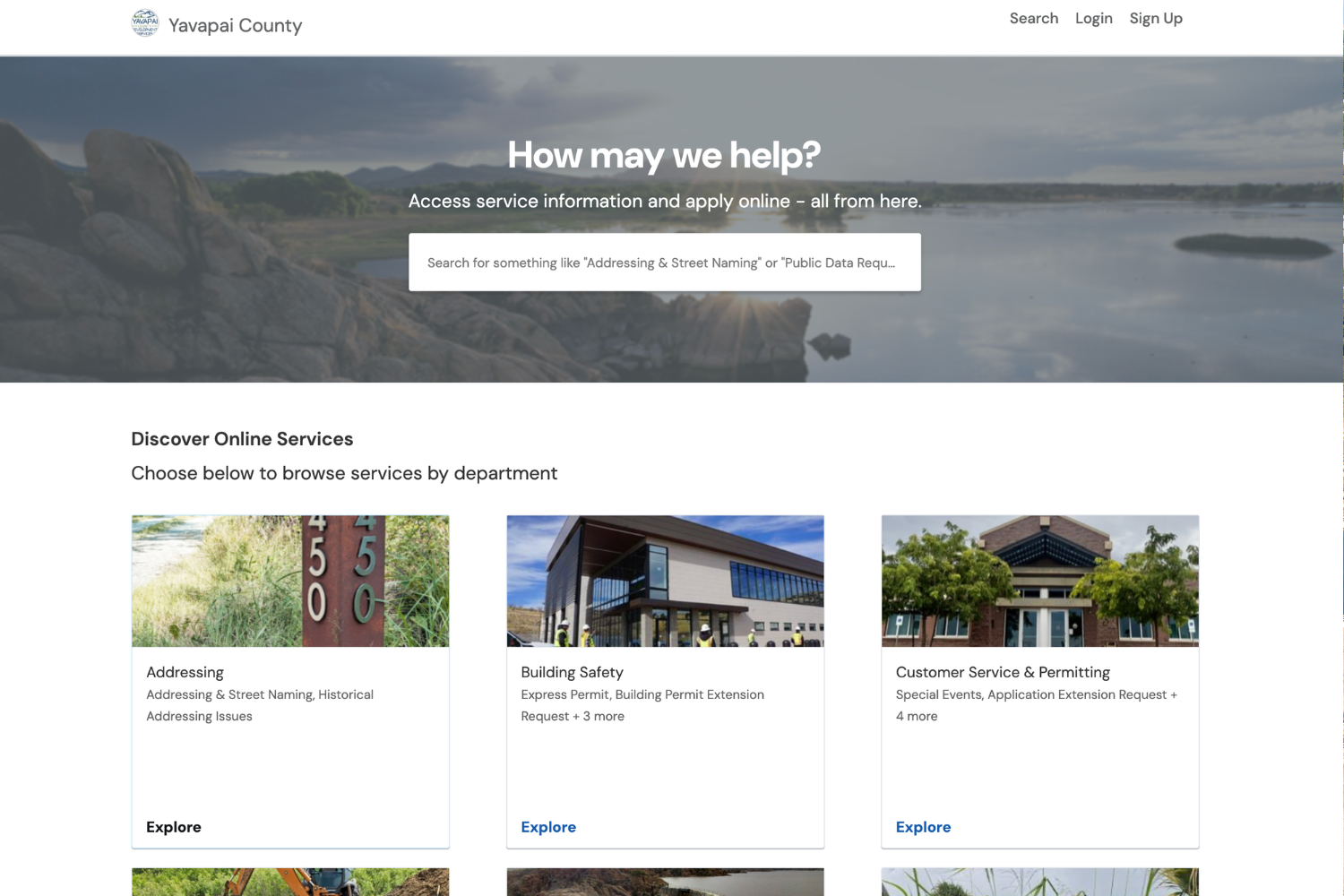
How to Create a Yavapai County OpenGov Account
Creating an OpenGov account only takes a few steps. Use the County’s official website or permitting portal to ensure you’re registering in the correct system.
Step 1: Open the Official Permitting Portal
Visit the Yavapai County Development Services page and select OpenGov Online Permitting Portal. You can also visit the Yavapai County OpenGov portal directly.
Before entering personal information or making a payment, confirm that you’re on the official Yavapai County website or the County’s OpenGov portal.
Step 2: Select “Sign Up”
Select Sign Up from the portal login screen. If you already have an OpenGov account, you may be able to sign in using your existing credentials instead of registering again.
Step 3: Choose “Sign up using Secure Portal”
When prompted, select Sign up using Secure Portal. This option creates the login you’ll use to access Yavapai County applications and permit records through OpenGov.
Step 4: Enter Your Account Information
Enter your email address and create a secure password. Use an email address you monitor regularly, since the County may use it for verification messages and permit-related communications.
Step 5: Verify Your Email Address
Open the verification email sent to the address you provided and follow the activation link. If the message doesn’t arrive, check your spam or junk folder and confirm that your email address was entered correctly.
Step 6: Sign In
Return to the OpenGov portal and sign in using your verified email address and password. Complete any additional profile information requested before starting an application or attempting to access an existing permit.
Practical tip: Use a stable email address that you’ll continue to monitor throughout the project. Avoid registering with an address you may lose access to when an employee, contractor, or consultant leaves. Don’t share your password. Other authorized team members should create their own accounts if they need portal access.
What to Do If You Received an Email About an Existing Permit
Receiving a migration email doesn’t necessarily mean there’s a new problem with your permit or that you need to take immediate action.
Yavapai County transferred existing permit records as part of its move to OpenGov. During this process, permit contacts may receive automated messages connected to records from the previous system. Permit Pushers has seen notices involving both current projects and older permits, including some that may already be completed or closed.
The email may contain a permit-specific link and Claim Code needed to connect the migrated record to an OpenGov account. Even if you don’t need access today, keep that information in case you need to retrieve documents, review the permit, or schedule an inspection later.
If you receive one of these emails:
Confirm the permit number shown in the message.
Identify the property or project associated with the permit.
Determine whether the permit is open, active, completed, expired, or closed.
Check whether an inspection, document, fee, or other action remains outstanding.
Save or archive the email, including its permit-specific link and Claim Code.
Claim the permit if it’s active or you expect to need online access in the future.
Contact Yavapai County Development Services or a permit professional if the permit’s status or required next step is unclear.
What Is an OpenGov Claim Code?
An OpenGov Claim Code is a permit-specific code used to connect an existing permit record with an authorized OpenGov account. Yavapai County may include the code in a migration email or permit access notice when a record has been transferred from the previous permitting system.
The Claim Code isn’t the same as the permit number. The permit number identifies the record, while the Claim Code may be needed to add that record to your account and gain online access.
Think of the Claim Code as a key that helps connect an existing permit record to the appropriate portal account. Because it may provide access to project information and permit activity, treat it as private information.
Don’t publish the Claim Code online.
Remove or obscure it from screenshots.
Don’t forward it to anyone who isn’t authorized to manage the permit.
Save the original email in a secure, searchable location.
If you need the code later, search your archived messages using the permit number.
Do You Need to Claim Every Permit?
Not necessarily. Whether you should claim a permit depends on its current status and whether you’ll need to manage the record through OpenGov.
Claiming a permit may be important if:
The permit is active or open.
Additional documents must be submitted.
Plan-review comments require a response.
Fees remain outstanding.
An inspection needs to be requested.
You need to monitor current permit activity.
Your project team expects to access the record again.
Immediate action may not be necessary if the permit is completed and closed, the notice concerns an older record with no remaining work, no future inspections or portal access are expected, or another authorized party is already managing the permit.
Even if you don’t claim the record now, archive the migration email instead of deleting it. The permit-specific link and Claim Code may be difficult to retrieve later if you unexpectedly need access.
Important: Claiming a permit doesn’t necessarily change its status, reopen a closed permit, or create a new application. It connects the migrated permit record to your OpenGov account so you can access and manage it online.
How to Claim an Existing Permit in OpenGov
If you need online access to a permit transferred into OpenGov, use the permit-specific link and Claim Code provided in Yavapai County’s migration notice.
The exact prompts may vary depending on the permit and your level of access. Follow the instructions shown in the portal, and contact Yavapai County Development Services if anything is unclear.
Step 1: Create or Sign In to Your OpenGov Account
Create an OpenGov account or sign in with your existing credentials. When appropriate, use the email address associated with the permit or the address that received the migration notice.
If you’re unsure which email address should be used, confirm with the County before creating additional accounts.
Step 2: Open the Permit-Specific Access Link
Find the migration email associated with the permit and open the access link included in the message. Use that link instead of starting a new permit application.
Before proceeding, confirm that the email and link came from Yavapai County or its official OpenGov portal.
Step 3: Enter the Claim Code
Enter the Claim Code exactly as it appears in the migration notice. Remember that the Claim Code and permit number are different. The permit number identifies the record, while the Claim Code helps connect that record to an authorized account.
Step 4: Review the Permit Information
Before completing the claim, confirm that the record matches the correct project. Check the:
Permit number
Property address
Project description
Applicant or project contact
Current permit status
If any of this information appears incorrect, stop and contact Yavapai County Development Services before claiming the record.
Step 5: Complete the Claim
Follow the prompts displayed in OpenGov to connect the permit to your account. Claiming the record provides online access. It doesn’t automatically change the permit’s status, reopen a closed permit, or create a new application.
Step 6: Confirm That the Permit Appears in Your Account
After completing the process, return to your OpenGov dashboard and confirm that the permit is visible. Open the record and review its status, outstanding requirements, available documents, communications, fees, and inspection options.
What If You Can’t Claim the Permit?
Because the portal transition is still new, the correct solution may depend on the permit and how the record was migrated.
The Claim Code isn’t accepted: Confirm that you entered the complete code from the correct permit notice. If it still doesn’t work, contact the County rather than repeatedly attempting to claim the record.
The access link has expired or won’t open: Access the County’s official Development Services page independently and request help with the migrated permit.
The permit is already connected to another account: Confirm whether another authorized owner, contractor, designer, or project representative is managing it. Don’t create a duplicate application.
The permit appears, but inspection scheduling isn’t available: The permit may not be eligible for that inspection yet, or your account may not have the required access. Check the permit status and outstanding requirements before contacting the County.
You don’t recognize the permit: Don’t claim the record, follow payment instructions, or provide sensitive information until you verify the notice directly with Yavapai County.
The address or permit status appears incorrect: Save a redacted screenshot of what you see and contact the County for clarification. Don’t submit a new application to correct a migrated record.
Keep the original email: Even after claiming the permit, retain the migration notice in a secure, searchable location. It provides a useful record of the permit-specific link, Claim Code, and account-access instructions.
How to Find and Review an Existing Permit
After signing in or claiming a migrated permit, check your OpenGov dashboard for the record. Select the permit to review its details and determine whether any action is required.
Start by confirming that you’ve opened the correct record. Review the:
Permit number
Project address
Application or permit type
Current status
Assigned workflow stage
Outstanding requirements
Messages or requests from County staff
Uploaded and approved documents
Unpaid fees
Inspection history
Available next actions
Pay close attention to the permit’s status and any outstanding tasks. A permit appearing in your account doesn’t necessarily mean it’s still active or requires action. It may be completed, closed, expired, or included only because it was transferred from the County’s previous system.
If the permit is active, review recent communications and outstanding requirements before uploading documents, making a payment, or requesting an inspection. If the information appears incorrect or you’re unsure what the County requires next, contact Yavapai County Development Services before creating a new application or submitting duplicate information.
Screenshot reminder: Before publishing a screenshot of the permit dashboard, obscure all names, addresses, permit numbers, Claim Codes, contact details, and financial information.
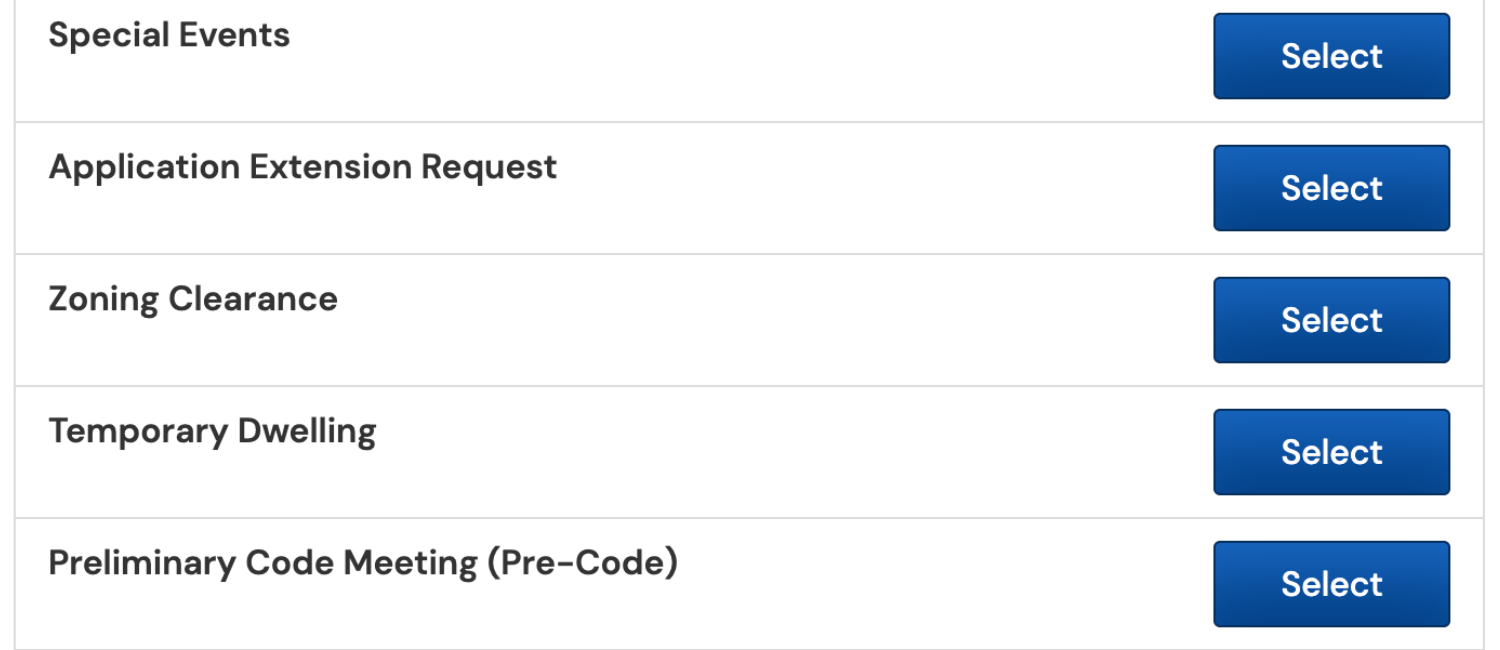
How to Apply for a New Yavapai County Permit
Before starting an application, confirm that Yavapai County is the correct permitting jurisdiction for the project address. The County generally administers permits for properties in unincorporated areas. Projects within Prescott, Prescott Valley, Cottonwood, Sedona, or another municipality may need to be submitted through a different agency.
Step 1: Create or Sign In to Your OpenGov Account
Visit the Yavapai County OpenGov portal and sign in. If you haven’t registered, create an account and verify your email address before beginning the application.
Step 2: Select the Appropriate Application
Choose the application or record type that matches your project. Selecting the wrong permit can lead to missing requirements, intake problems, or delays during review.
Step 3: Enter the Project Information
Provide the requested property and project details. Review the address, parcel information, project description, and scope of work carefully before continuing.
Step 4: Add the Required Contacts
Add the property owner, applicant, contractor, designer, engineer, or other project contacts requested for the application. Make sure names, email addresses, license information, and roles are accurate.
Step 5: Upload Plans and Supporting Documents
Upload the plans, forms, calculations, specifications, and other documents required for the permit type. Use clear filenames and confirm that each document is current, complete, and legible.
Step 6: Review the Application
Before submitting, check the entire application for missing fields, incorrect information, and incomplete uploads. A thorough review can help prevent avoidable intake rejections and requests for additional information.
Step 7: Submit the Application
Follow the portal prompts to submit the application. Confirm that the submission was successfully transmitted and save any confirmation number, receipt, or email for your records.
Step 8: Pay Applicable Fees
Some fees may be required at submission, while others may be assessed later in the review process. Pay fees only through the official County or OpenGov portal and retain the receipt.
Step 9: Monitor the Application
Continue checking OpenGov for status changes, messages from County staff, requests for additional documents, and plan-review comments. Submitting the application is only the beginning of the process. Delayed responses can prevent the permit from moving forward.
Requirements vary by project: Residential building permits, commercial permits, plumbing permits, zoning clearances, and septic-related applications may require different forms, plans, approvals, and review departments. Confirm the requirements for your specific project before submitting.
Permit Pushers can help with residential permits, commercial permits, plumbing permits, and permit expediting from application preparation through permit issuance.
How to Upload Documents and Respond to Plan-Review Comments
After submitting an application, monitor the permit record for outstanding tasks, messages, and requests from Yavapai County. Depending on the application and your access, these may appear within the permit record, workflow, or communications area of OpenGov.
When plan-review comments are issued:
Review every comment. Read the complete review before preparing a response. A single review may include comments from multiple County departments.
Coordinate the required revisions. Share relevant comments with the architect, engineer, contractor, or other professional responsible for revising the plans or supporting documents.
Prepare the correct files. Confirm that each document reflects the latest revisions. Use clear filenames that identify the document, revision, and date. Avoid vague names such as “final plans” or “new version.”
Include a response letter when required. Address each plan-review comment and identify where the corresponding change appears in the revised documents.
Upload the complete resubmittal. Make sure every required plan, form, calculation, response letter, and supporting document is included. Avoid duplicate uploads and remove outdated versions when the portal allows.
Complete the submission process. Follow all remaining prompts or workflow steps after uploading the files. Confirm that the resubmittal was successfully transmitted and save any confirmation for your records.
Important: Uploading a revised plan doesn’t necessarily complete the resubmittal. Confirm that all required documents have been provided, every applicable comment has been addressed, and the portal shows that the response was submitted successfully.
How to Request an Inspection Through OpenGov
Before requesting an inspection, confirm that the permit appears in your OpenGov account. A migrated permit may need to be claimed before online inspection options become available.
Step 1: Review the Permit Status
Open the permit record and confirm that it has been issued and is eligible for the inspection you need. Check for outstanding fees, documents, approvals, or other requirements that could prevent scheduling.
Step 2: Select the Appropriate Inspection
Choose the inspection type that matches the current stage of work. Selecting the wrong inspection may delay the project or require a new request.
Step 3: Enter the Scheduling Information
Provide the requested date or scheduling preferences, if available. Inspection dates aren’t guaranteed until confirmed by the County.
Step 4: Add Site-Access Details
Include any information the inspector may need to access the property, such as gate instructions, lockbox details, occupied-building considerations, or directions to the work area. Don’t include sensitive access information unless the portal specifically requests it.
Step 5: Confirm the Contact Information
Provide accurate contact details for the person who can answer questions about the project or meet the inspector when required.
Step 6: Review and Submit the Request
Check the permit number, property address, inspection type, contact details, and site-access information before submitting. Avoid sending multiple requests for the same inspection.
Step 7: Save the Confirmation
Confirm that OpenGov displays a submission or scheduling notice. Save the confirmation number, email, or screenshot for your project records. A request shouldn’t be treated as scheduled until you receive confirmation through the portal or directly from the County.
Inspection procedures may vary: Availability, service areas, lead times, and scheduling procedures may differ based on the permit, inspection type, and current County operations. Review the latest information on the Yavapai County Development Services page rather than relying on a specific inspection timeframe.
What If the Inspection Option Isn’t Available?
If you don’t see inspection controls, check whether the permit has been claimed, is visible in the correct account, has been issued, and is eligible for the requested inspection. Account permissions, outstanding requirements, or the type of permit record may also affect which options appear.
Contact Yavapai County Development Services if the reason remains unclear. Don’t create a duplicate application or submit repeated inspection requests in an attempt to make the option appear.
Common OpenGov Problems and What to Check
Portal transitions can create temporary account, access, and record issues. If something doesn’t look right, review the following items before starting a new application or submitting duplicate information.
The Verification Email Didn’t Arrive
If you created an account but haven’t received the verification email:
Check your spam or junk folder.
Confirm that your email address was entered correctly.
Check whether your email provider or organization filtered the message.
Confirm that you completed the registration process.
Wait a few minutes before requesting another verification email.
If the message still doesn’t arrive, contact Yavapai County Development Services for assistance.
The Permit Isn’t Visible
If an existing permit doesn’t appear in your account, check:
Whether the permit needs to be claimed using its permit-specific link and Claim Code.
Whether you signed in to the correct OpenGov account.
Whether another authorized project contact already claimed the record.
Whether you’re searching with the correct permit number.
Whether the permit belongs to Yavapai County or a separate municipality.
A missing record doesn’t necessarily mean the permit no longer exists. Contact the County before creating a duplicate application.
The Claim Code Doesn’t Work
If OpenGov doesn’t accept the Claim Code:
Confirm that you entered the complete code.
Check for incorrect capitalization, missing characters, or extra spaces.
Make sure you’re using the code with the correct permit-specific link.
Confirm that the permit hasn’t already been claimed by another authorized contact.
Keep the original migration email and contact Yavapai County if the code still isn’t accepted. Don’t share the Claim Code publicly or include it in an unredacted screenshot.
An Old Permit Generated a New Email
A new email about an older permit may be related to the transfer of records into OpenGov. It doesn’t necessarily mean the permit has been reopened or that new work is required.
Confirm the permit’s current status, save the migration notice, and check whether any inspection or other action remains outstanding. If the status is unclear, contact the County or the permit professional managing the project.
Inspection Scheduling Isn’t Available
If you can see the permit but can’t request an inspection, check:
Whether the permit has been issued.
Whether it’s visible in the correct account.
Whether your account has the necessary access.
Whether fees, documents, approvals, or other requirements remain outstanding.
Whether the requested inspection is available at the permit’s current stage.
Don’t submit duplicate requests or create a new permit to resolve the issue. Contact Yavapai County Development Services if you can’t determine why the inspection option is unavailable.
The Permit Record Contains Incorrect Information
If the property address, applicant, permit status, or other information appears incorrect, don’t create a duplicate application to correct the record. Save a redacted screenshot of the discrepancy and contact Yavapai County Development Services or the permit professional managing the project.
When requesting assistance, have the permit number, project address, email address associated with the account, and exact error message available. Never send your password or publish your Claim Code.
OpenGov Transition Best Practices
A new permitting system can make it harder to tell which records need attention and which messages are simply part of the migration. A few organizational habits can help you protect important information, avoid duplicate work, and keep active permits moving.
Archive every migration email. Keep the original message, permit-specific link, and Claim Code in a secure, searchable location.
Organize records by permit number. Include the permit number in email subject lines, project folders, and internal tracking documents so information is easy to find.
Keep Claim Codes private. Share them only with people authorized to access or manage the permit.
Prioritize active and open permits. Address projects with outstanding reviews, documents, fees, inspections, or other required actions first.
Confirm the status of older permits. Before spending time claiming an old record, determine whether it’s active, completed, expired, or closed.
Maintain an action list. Track permits that still require inspections, revised documents, fee payments, responses, or follow-up with County staff.
Avoid duplicate applications. If a permit is missing or contains incorrect information, contact Yavapai County before starting a new application.
Verify the jurisdiction. Confirm that Yavapai County is the correct reviewing agency before submitting a new application.
Retain important project records. Download and save approved plans, issued permits, payment receipts, inspection results, and other official documents when available.
Document County communications. Record important emails, calls, instructions, and decisions, including the date and the staff member involved.
Confirm every submission. After uploading an application, document, or resubmittal, verify that it appears in the portal and that all required workflow steps have been completed.
Best practice: Don’t treat an upload as complete until the file appears in the correct permit record and the portal confirms that the submission was received.
Received an OpenGov Permit Email? Start Here
Save the original email.
Confirm the permit number and property.
Check the permit’s current status.
Identify any outstanding action.
Keep the Claim Code private.
Claim the record if continued access is needed.
Contact the County if anything is unclear.
Need Help Managing a Yavapai County Permit?
A new permitting system shouldn’t become another project for you to manage. Permit Pushers helps property owners, contractors, designers, and project teams navigate Yavapai County’s requirements and keep track of what needs to happen next.
Depending on your project and permit status, we can help:
Confirm the correct permitting jurisdiction
Identify the appropriate permit application
Organize plans and supporting documents
Coordinate new OpenGov submissions
Locate and manage active permit records
Communicate with County staff
Track application progress and outstanding requirements
Organize responses to plan-review comments
Coordinate revised documents and resubmittals
Help manage inspection requests
Keep the process moving through permit issuance
Permit Pushers can’t control County review times or guarantee an approval. What we can do is coordinate the details, maintain clear communication, and help prevent missed requirements from creating avoidable delays.
Tell us about your project, permit number, or OpenGov issue, and we’ll help you determine the next step.
Conclusion
OpenGov is now Yavapai County’s permitting platform. As applicants and existing permit records move into the new system, some temporary confusion is understandable. Receiving an unexpected email, especially about an older permit, doesn’t necessarily mean there’s a problem or that immediate action is required.
The safest approach is to save the migration email, keep the Claim Code private, and confirm the permit’s current status and jurisdiction before taking action. Prioritize active and open permits, particularly those with outstanding documents, review comments, fees, or inspections. Claim the record if you’ll need continued online access.
If you’re managing an active project, addressing portal access early can help prevent avoidable problems when it’s time to submit documents, respond to comments, or request an inspection. When account access, documentation, or permit coordination becomes complicated, Yavapai County Development Services or an experienced permit professional can help you determine the next step.
FAQ
-
Yes. Yavapai County Development Services launched its OpenGov permitting system on July 28, 2026. The County’s Development Services page now links to the new portal.
-
No. Don’t assume your Citizenserve username and password will transfer to OpenGov. Follow the registration instructions in the new portal and create an account when prompted.
-
The email may relate to a permit record transferred during the move to OpenGov. Receiving a migration notice doesn’t necessarily mean the permit has been reopened, remains active, or requires immediate action.
Confirm the permit number, property, current status, and any outstanding requirements before proceeding.
-
Not necessarily. Prioritize active or open permits and records you’ll need to access for documents, County communications, payments, plan-review responses, or inspections.
If a permit is completed and closed and no future access is expected, immediate action may not be necessary. However, archive the email so its permit-specific link and Claim Code remain available.
-
A Claim Code is permit-specific information used to connect a migrated permit record with an authorized OpenGov account. It isn’t the same as the permit number.
Treat the Claim Code as private project-access information. Don’t publish it, include it in an unredacted screenshot, or share it with anyone who isn’t authorized to manage the permit.
-
No. Archive the original email even if the permit appears to be completed or closed. Keeping the message preserves the permit-specific link, Claim Code, and migration information in case access is needed later.
-
You’ll need access to the applicable permit record before you can use its online inspection controls. However, Yavapai County’s current public instructions don’t clearly confirm whether every migrated permit must be claimed before an inspection can be requested through OpenGov.
If the permit or inspection option isn’t visible in your account, use the permit-specific instructions provided in the migration email or contact Development Services. Don’t submit a duplicate application or repeated inspection requests.
-
Confirm that:
You entered the correct permit number.
You signed in to the correct account.
The record needs to be claimed.
You used the correct permit-specific link and Claim Code.
Another authorized project contact hasn’t already claimed it.
The permit belongs to Yavapai County rather than another jurisdiction.
If the permit still doesn’t appear, contact Yavapai County Development Services before creating a new application.
-
Not necessarily. Yavapai County Development Services primarily administers permits for properties in unincorporated areas.
Properties within the City of Prescott or Town of Prescott Valley generally follow those municipalities’ separate permitting processes. The City of Prescott uses PrescottPermits.com, while Prescott Valley provides its own permit applications and submission guidance.
Always confirm the reviewing jurisdiction using the project address before starting an application.
-
Yavapai County Development Services currently lists:
Prescott office: 928-771-3214
Cottonwood office: 928-639-8151
Contact information can change. Verify the current details on the County’s official Development Services page before reaching out.